

FOX SDR Logger – Android Logging App for Ham Radio Operators


Introduction
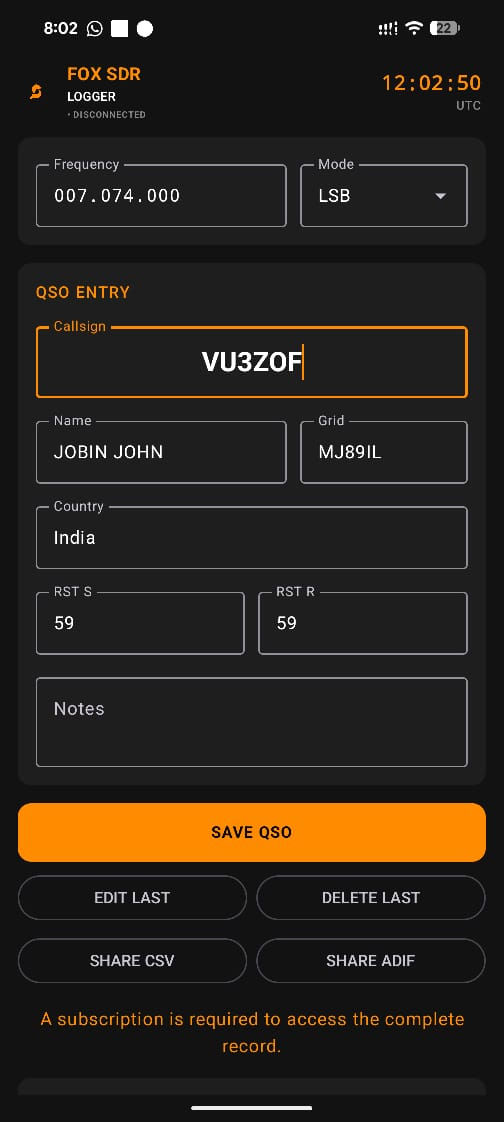
FOX SDR Logger is a simple Android-based ham radio logging application developed for radio amateurs who need an easy and portable way to save QSO details from the field, shack, or portable station. The app is designed especially for FOX SDR users, but it can also be useful with other radios when CAT control is available.
The main purpose of this app is to make QSO logging simple. Instead of using a laptop during portable operation, the operator can use an Android phone to enter QSO details, save logs, search old contacts, export CSV or ADIF files, and optionally sync frequency and mode from the radio using USB CAT or Wi-Fi CAT.
This project is created for the ham radio community and is intended for learning, testing, and practical field use.
Main Features
1. Simple QSO Entry
The main screen allows the operator to enter basic QSO details quickly.
The available fields include:
Callsign
Frequency
Mode
RST Sent
RST Received
Name
Country
Grid locator
Notes
The app records the QSO with UTC date and UTC time, which is important for proper logbook upload and international ham radio logging.
2. UTC Date and Time Logging
FOX SDR Logger uses UTC time for QSO logging. This is important because most online logbooks and award systems expect the QSO date and time in UTC format.
Each saved QSO includes:
Date UTC
Time UTC
Callsign
Frequency
Mode
Signal report
Name
Country
Grid
Notes
This makes the exported logs useful for online logbook services and future backup.
3. CSV Export
The app saves log data in CSV format. CSV is useful because it can be opened in spreadsheet programs such as Microsoft Excel, Google Sheets, LibreOffice Calc, or other log-processing tools.
The CSV file can be used for:
Manual backup
Spreadsheet checking
Editing outside the app
Sharing with other logging software
Keeping a simple personal log archive
The app includes a “Share CSV” option so the user can easily send or save the CSV file.
4. ADIF Export
FOX SDR Logger can generate an ADIF file from the saved QSO log. ADIF is the standard format used by many ham radio logging programs and online logbook systems.
The ADIF file can be used for:
QRZ logbook
LoTW-compatible processing through other software
eQSL or other logging systems
Backup and transfer to desktop logging software
This is one of the most important features for ham operators who want to move their mobile logs to online platforms.
5. QRZ and HamQTH Callsign Lookup
The app supports callsign lookup using QRZ and HamQTH.
When the operator types a callsign, the app can search online and fill details such as:
Operator name
Country
Grid locator
This helps reduce manual typing and improves log accuracy.
To use this feature, the user must enter QRZ or HamQTH login details in the settings section. Internet connection is required for callsign lookup.
6. QRZ Logbook Upload Support
FOX SDR Logger includes QRZ logbook upload support. If the user enters a QRZ Logbook API key and enables auto upload, the app can upload the saved QSO to QRZ logbook.
This is useful for operators who want to keep their online log updated without manually uploading ADIF every time.
Required for QRZ upload:
QRZ Logbook API key
Station callsign
Internet connection
Auto-upload option enabled
If the QRZ upload is not needed, the operator can keep this feature disabled and only use CSV or ADIF export.
7. USB CAT and Wi-Fi CAT Frequency Sync
The app supports CAT-based frequency and mode synchronization. This helps the logger automatically read the current radio frequency and mode.
Supported connection methods:
USB CAT
Wi-Fi CAT
Kenwood-style CAT commands
Hamlib-style network control modes
For FOX SDR, Wi-Fi CAT can be used to read frequency and mode from the radio system. This is useful because the operator does not need to type the frequency manually every time.
The app can show live CAT status such as connected, syncing, or disconnected.
8. Worked-Before Warning
The app can check the saved CSV log and warn if the callsign was worked before.
When a callsign is typed, the app can show previous QSO information such as:
Number of previous QSOs
Last QSO date
Last QSO time
Frequency
Mode
Name, country, and grid if available
This feature is useful during field operation because the operator can quickly know whether the station is a new contact or an already worked station.
9. Duplicate QSO Warning
FOX SDR Logger can warn before saving a possible duplicate QSO.
The duplicate check can compare:
Same callsign
Same band
Same mode
Same UTC date
If a possible duplicate is found, the app can warn the operator before saving. This helps avoid accidental duplicate entries, especially during contest-style or field-day operation.
The operator can still choose to save if the duplicate is intentional.
10. Edit Last QSO and Delete Last QSO
Mistakes can happen during logging. For example, a callsign may be typed incorrectly, or the report may need correction.
The app includes:
Edit last QSO
Delete last QSO
Edit Last QSO loads the most recent QSO back into the entry fields. After correction, the user can update the saved record.
Delete Last QSO removes the last saved QSO from the log. This is useful when a wrong entry is saved by mistake.
After edit or delete, the app can regenerate the ADIF file so the exported log stays updated.
11. Search Log
The app includes a simple log search feature.
The operator can search old QSOs by:
Callsign
Date
Frequency
Mode
Country
Grid locator
Name
Notes
This is useful when checking whether a station was worked before, finding old contacts, or reviewing portable operation logs.
12. Offline Mode and Field Status Indicator
During portable operation, internet may not always be available. The app can show clear status indicators so the operator understands what is working and what is not.
The status dashboard can show:
Internet: OK or Offline
QRZ: Logged in, ready, or not set
HamQTH: Ready or not set
Cloud export: Enabled or off
CAT: Connected, waiting, or off
This reduces confusion during field use. Normal logging can continue even without internet, but QRZ/HamQTH lookup and online upload need internet.
13. Simple QSO Statistics Dashboard
The app can also show a small statistics dashboard based on the saved log.
Example statistics:
Today’s QSOs
Total QSOs
Countries worked
Grid locators worked
Most used band
This gives the operator a quick view of activity without opening a separate logbook program.
14. Solar Weather Display
FOX SDR Logger includes a simple solar weather section. It can display radio propagation-related information such as:
Solar flux index
Sunspot number
A index
K index
This is useful for HF operators who want a quick idea of current band conditions.
Installation Method
Step 1: Get the APK File
Download or receive the FOX SDR Logger APK file.
If the APK is shared directly, save it on the Android phone.
Step 2: Allow APK Installation
On Android, installation from outside the Play Store may require permission.
Go to:
Settings → Security → Install unknown apps
Then allow installation from the file manager or browser used to open the APK.
The exact menu name may change depending on the Android version and phone brand.
Step 3: Install the App
Open the APK file and press Install.
After installation, open the FOX SDR Logger app.
Step 4: First Launch
When the app opens, it will show the FOX SDR Logger interface. The user can start logging manually even without setting up QRZ, HamQTH, or CAT.
Basic Setup
1. Station Callsign Setup
Open the settings section and enter your station callsign.
This is important for QRZ upload and proper station identification.
Example:
Station Callsign: VU3ZOF
2. QRZ Setup
To use QRZ callsign lookup and QRZ logbook upload, enter:
QRZ username
QRZ password
QRZ Logbook API key
Station callsign
Then press Save & Test Connection.
If QRZ login is successful, the app can use QRZ lookup. If QRZ API key is valid and auto upload is enabled, the app can upload logs to QRZ logbook.
3. HamQTH Setup
To use HamQTH lookup, choose HamQTH as the lookup service and enter:
HamQTH username
HamQTH password
Then press Save & Test Connection.
HamQTH can be useful as an alternative callsign lookup service.
4. CAT Setup
If you want the app to read frequency and mode from the radio, enable CAT.
For USB CAT:
Connect the radio or interface to the Android phone using USB OTG
Enable USB CAT
Select radio protocol
Select baud rate
Press connect
For Wi-Fi CAT:
Enable Wi-Fi CAT
Enter radio or FOX SDR IP address
Enter CAT port
Select the protocol
Connect to the same network as the radio or FOX SDR system
If CAT is working, the app will show live frequency and mode updates.
How to Log a QSO
Open FOX SDR Logger.
Confirm frequency and mode.
Type the callsign.
If QRZ or HamQTH is enabled, the app can fill name, country, and grid.
Enter RST sent and RST received.
Add notes if needed.
Press Save QSO.
The QSO is saved into the CSV log.
The ADIF file can be generated and shared.
If QRZ auto upload is enabled, the QSO can be uploaded online.
How to Export Logs
CSV Export
Press Share CSV.
Use this when you want to:
Open the log in Excel or Google Sheets
Save a backup
Share the log file
Check QSO entries manually
ADIF Export
Press Share ADIF.
Use this when you want to:
Upload to online logbooks
Import into desktop logging software
Keep standard ham radio log backup
Field Operation Tips
FOX SDR Logger is useful for portable operation because it can work as a lightweight mobile logger.
Recommended field method:
Keep phone charged.
Open app before operation.
Check UTC time.
Confirm frequency and mode.
Use CAT sync if available.
Log each QSO immediately.
Use worked-before warning to identify repeat contacts.
Use duplicate warning to avoid accidental repeated entries.
Export CSV and ADIF after operation.
Keep a backup copy of logs.
Even if there is no internet, normal logging can continue. QRZ/HamQTH lookup and QRZ upload can be done later when internet is available.
Who Can Use This App?
FOX SDR Logger can be useful for:
FOX SDR users
Portable operators
Field-day operators
QRP operators
Home station operators
Hams who prefer a simple Android logger
Operators who want CSV and ADIF export without a laptop
Current Status
The app is under active development and testing. More improvements may be added based on feedback from the ham radio community.
Possible future improvements:
ADIF import
More detailed statistics
More radio protocol support
Contest mode
POTA/SOTA fields
Better backup and restore option
Cloud sync improvements
Important Notes
Internet is required for QRZ/HamQTH lookup and online QRZ upload.
Normal QSO logging works without internet.
Always keep backup copies of CSV and ADIF files.
CAT support depends on the radio, cable, interface, and protocol.
This app is made for ham radio learning and community use.
Contact
For suggestions please contact:
Jobin John – VU3ZOFEmail: vu3zof@gmail.com
Comments